Effortless Time Tracking with Loggie
- What I did
- Concept
- UX/UI design
- Visual identity
- Prototyping
- Building with AI
- Team
- Me and Claude Code, with help from Simen A. W. Olsen
- Timeline
- Summer 2026
- Platform
- macOS, Claude via MCP
I have spent my whole career in agencies or as a consultant, where every hour has to be logged. Logging hours has taken a lot of time and been one more thing to remember, so I wanted to see if I could build a tool to help me out. Loggie started as an idea: what if time tracking just happened, and could flow straight into the timesheet systems people already use?
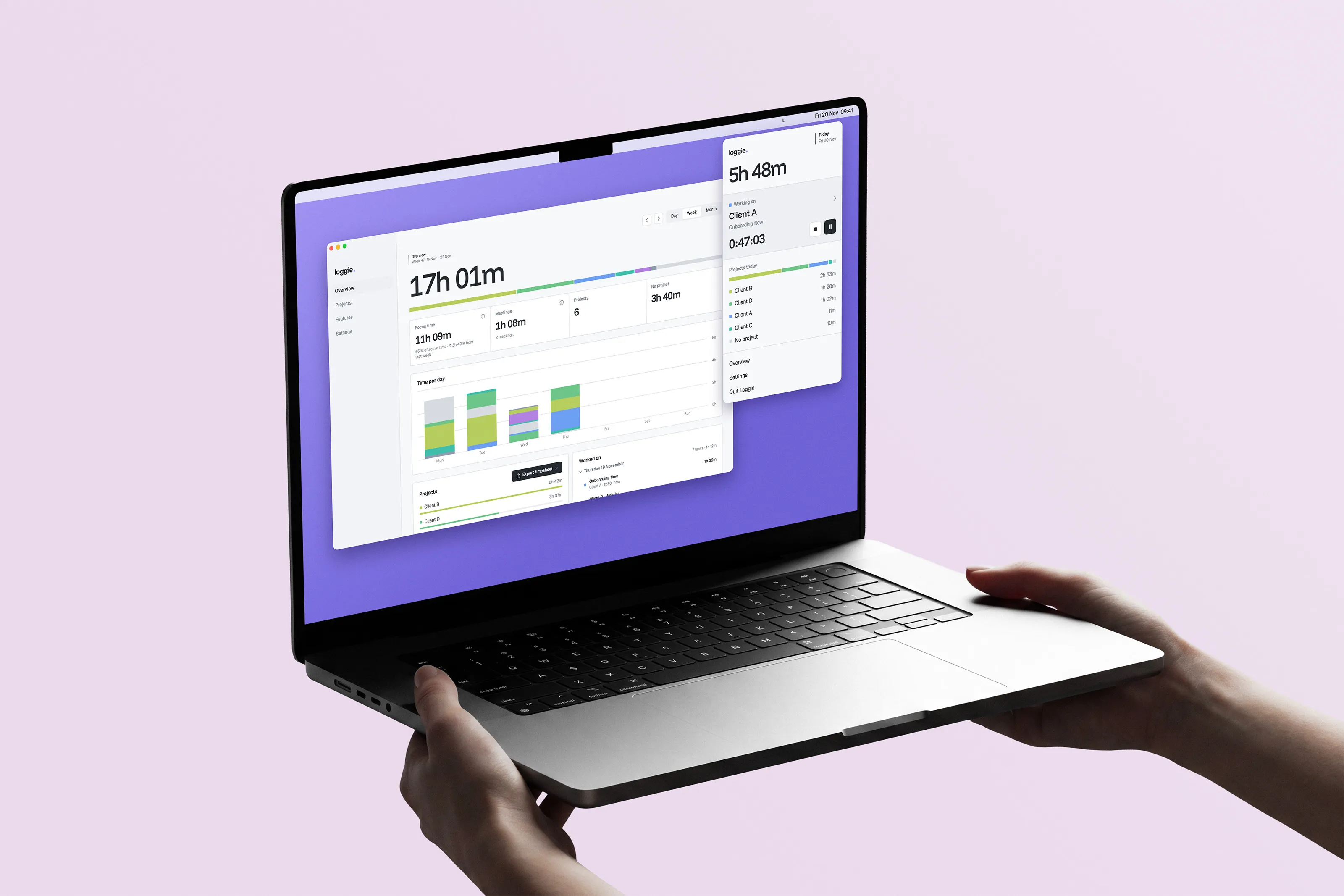
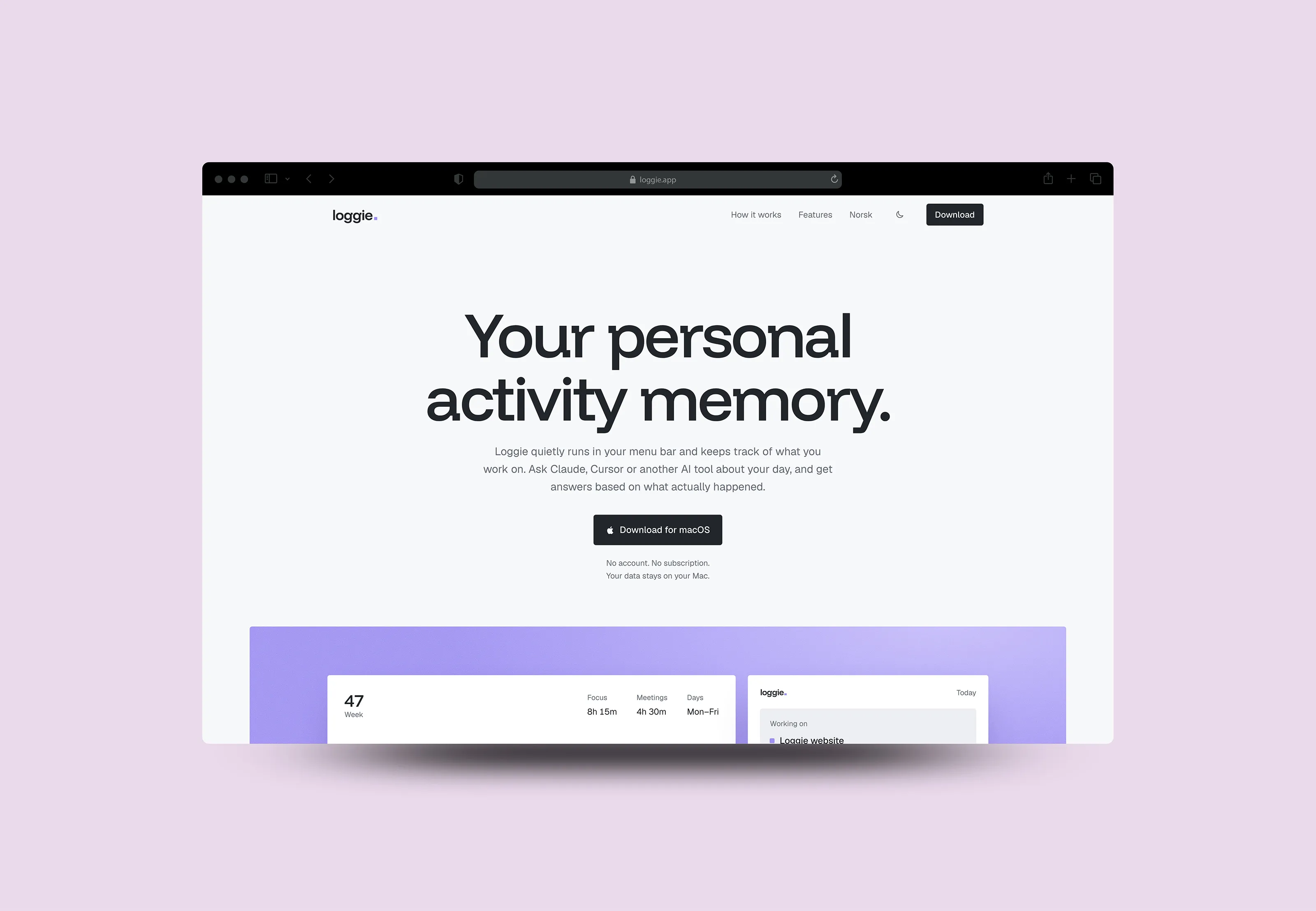
Loggie is a small Mac app in the menu bar. It logs which apps and windows you use, matches the time to your projects, and gives Claude and other AI tools access to the data through MCP, so you can ask what you worked on yesterday.
I designed Loggie and built it together with Claude Code. Simen set up the project and Apple signing, and I now handle the releases myself.
Users & insights
For now, the main user is me. I used Loggie every day while building it, and the mistakes it made on my own data shaped most of the decisions.
The first version knew which apps I had open, but not what I was working on. A day in Figma, Claude, Illustrator and Arc could belong to three different clients, and Loggie had no way of telling them apart.
Time that can’t be tied to a project is no help when the timesheet is due. Neither is time that keeps counting while you are at lunch.
- Claude was invisible. Its window is always just called “Claude”, so a whole afternoon of work there ended up as “No project”.
- Switching wasn’t noticed. When I moved to another project without telling Loggie, the time kept going to the old one.
- Breaks counted as work. Time away from the desk was logged as long as the last app stayed open.
- A focus number alone meant little. Focus time became useful when it showed the actual stretches of uninterrupted work.
Knowing which app is open is not the same as knowing what you work on.
Key decisions
Projects that recognise your work
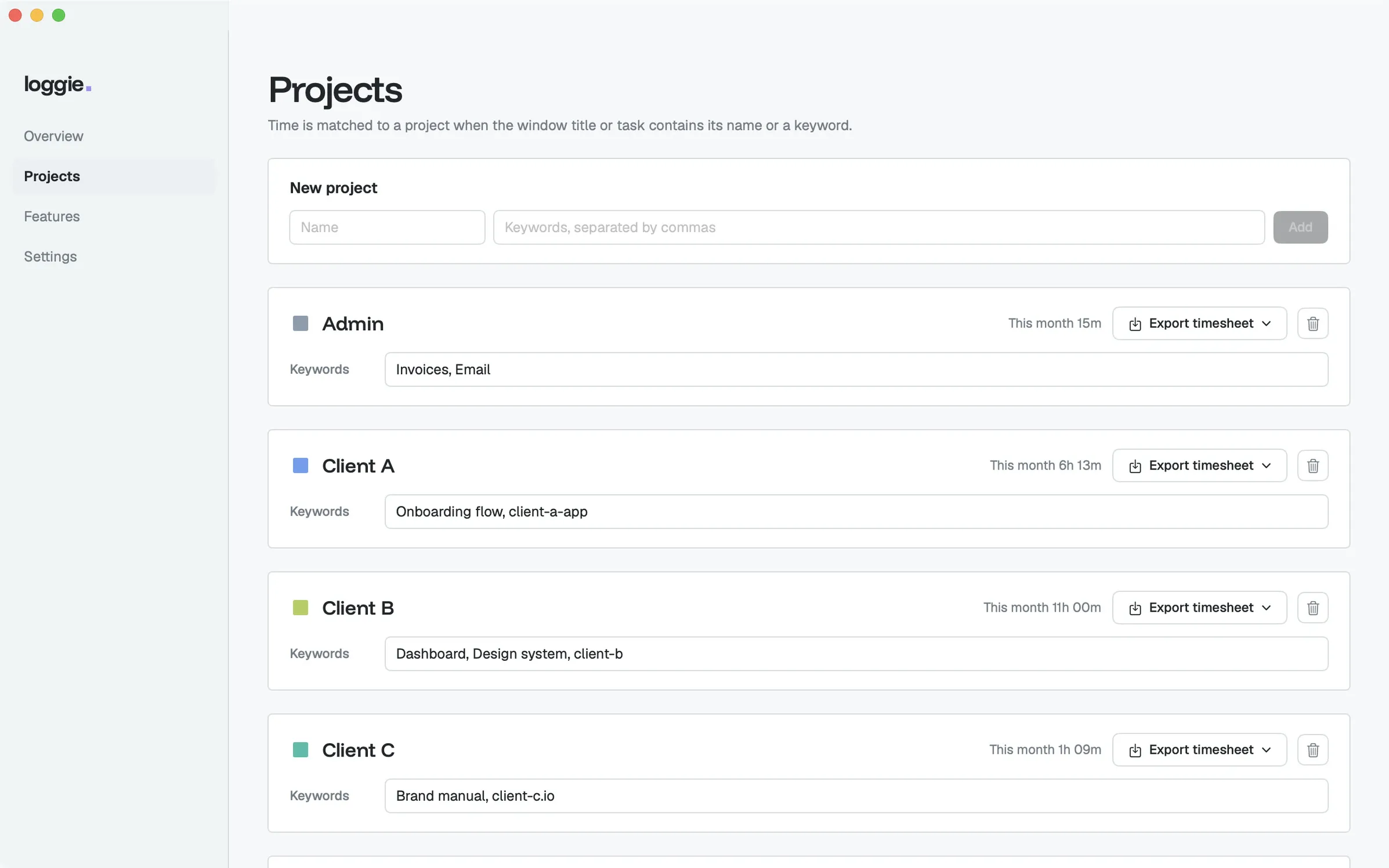
Each project has keywords that are matched against window titles and tasks. For work in Claude Code, a small hook tells Loggie which folder I’m in. If I work on another project for five minutes, Loggie asks whether I want to switch.
Stop counting when you leave
Loggie notices when the keyboard and mouse have been still for five minutes, the screen locks or the Mac goes to sleep. A task ends on its own after 30 minutes away, so a coffee break doesn’t end it, but a lunch does.
One export instead of a SkatteFUNN feature
I had an idea to use Loggie for SkatteFUNN applications. Instead of building something just for that, I made it possible to export any project as a timesheet with date, hours and a description. It covers what SkatteFUNN needs, and works just as well for project accounting and client reports.
Only show what’s turned on
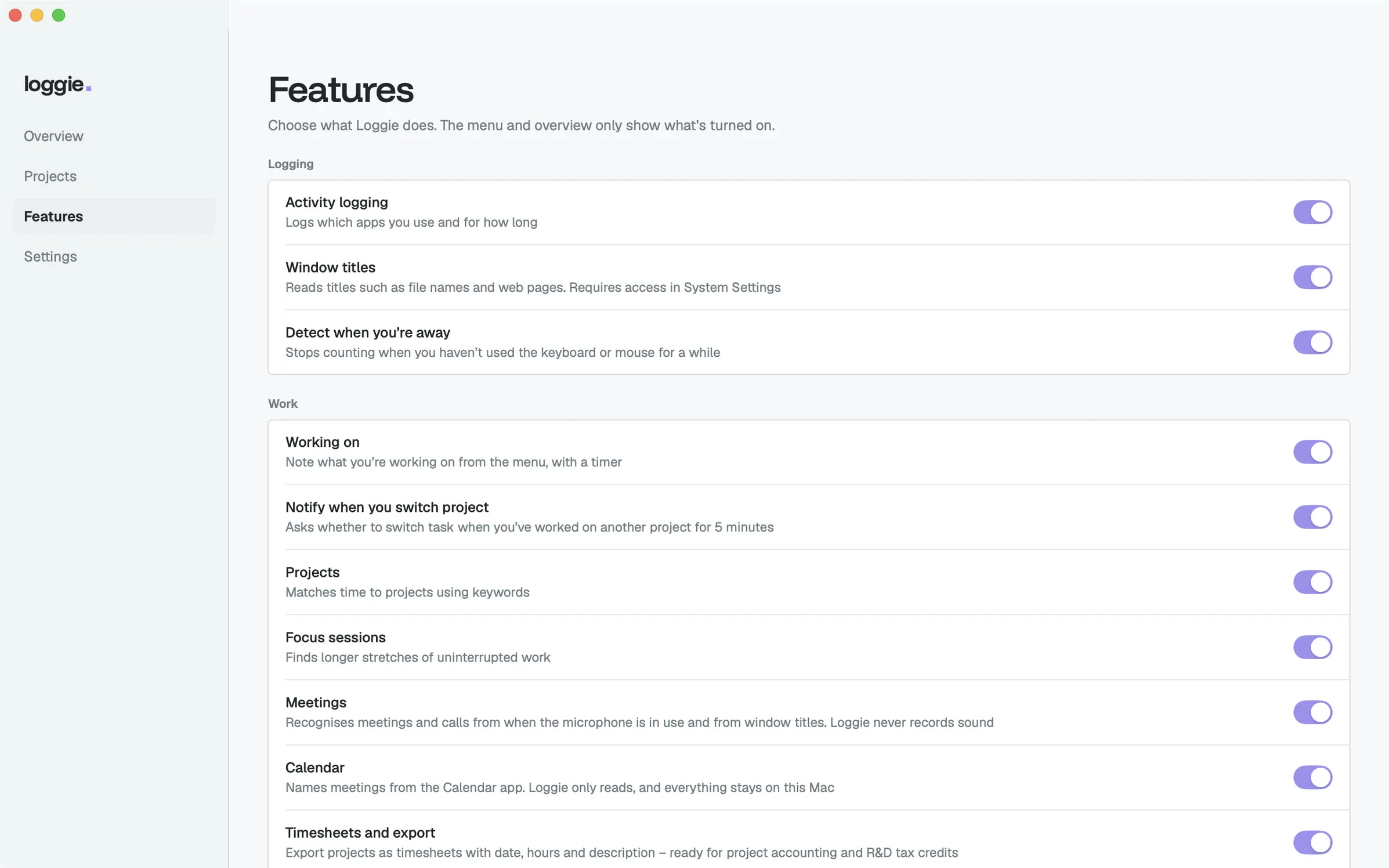
Every feature can be switched on or off, and the menu, the window and the AI tools follow those switches. Someone who only wants a simple timer doesn’t have to see focus sessions or exports.
Loggie style everywhere
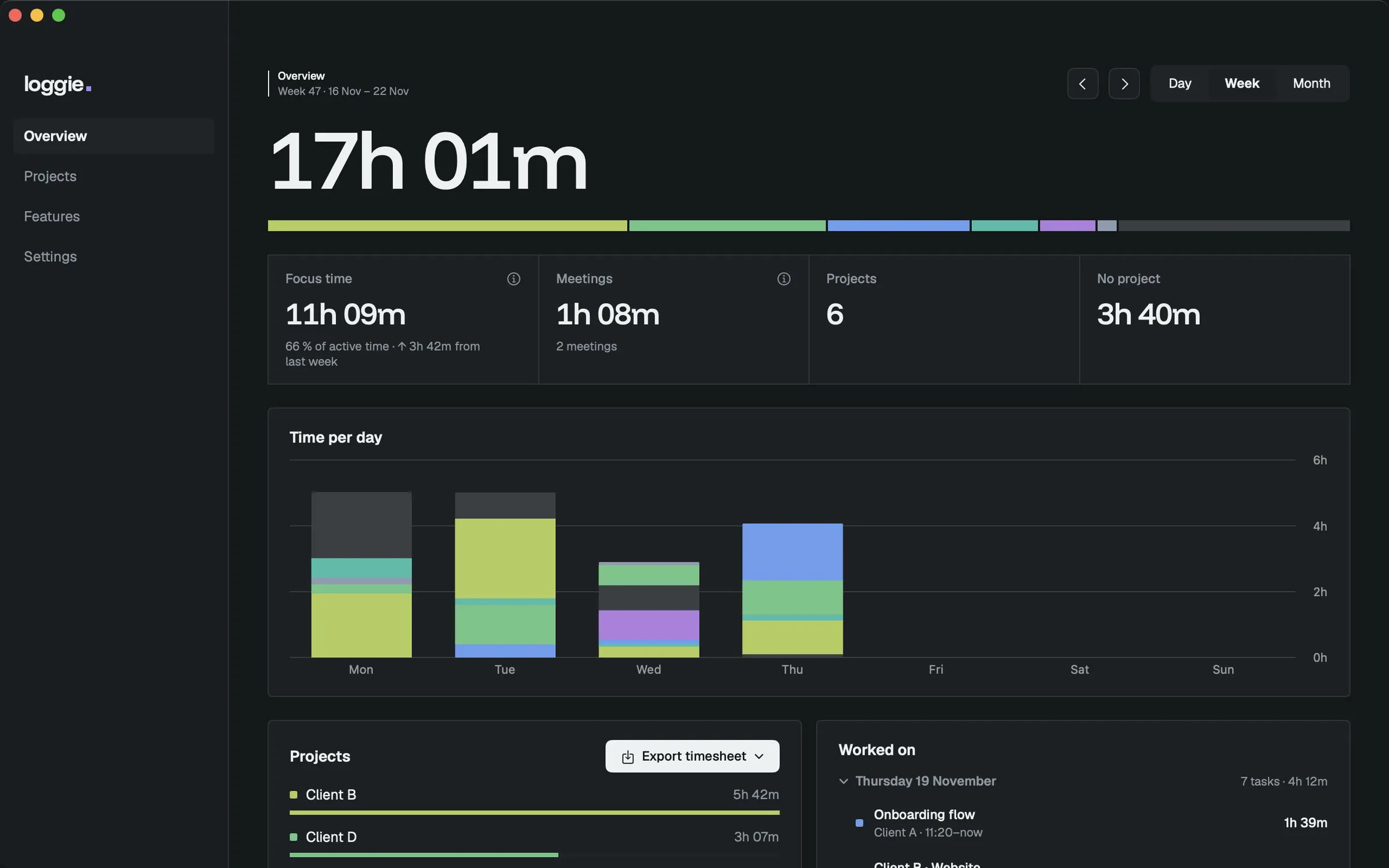
I tested whether Apple’s own design system would suit the settings better. Claude suggested a mix of the two, but I chose to keep everything in Loggie’s style and add dark mode, so the app feels like one product. That meant designing our own switches, checkboxes, fields and buttons.
How the menu evolved
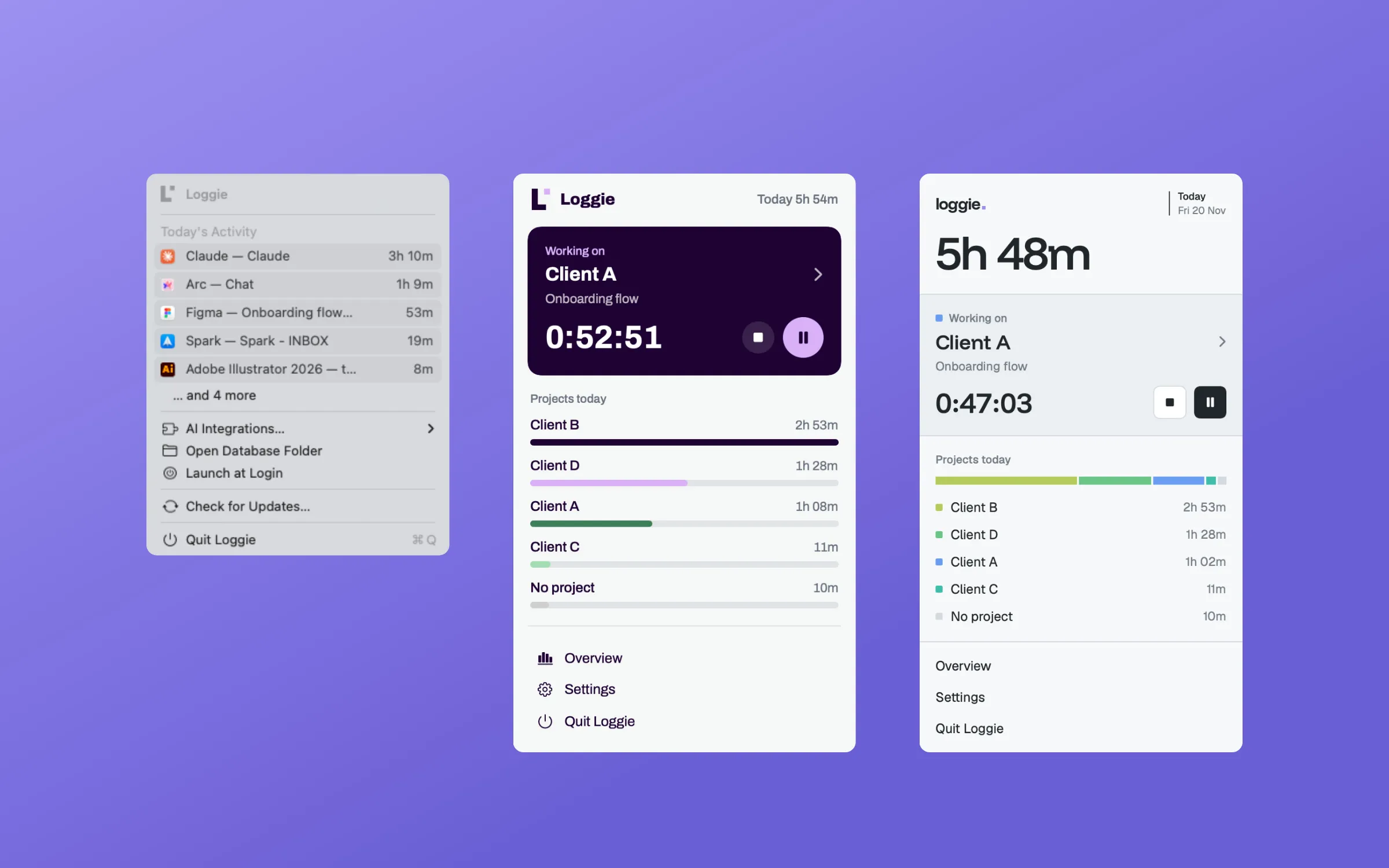
In April, Loggie was a standard Mac menu: a list of apps and windows with time next to them. It showed what I had open, but there were no projects, so it couldn’t tell me what I had worked on.
In October, projects and the Working on card came in. The task and the timer got the most room, and each project got its own bar. The card got a picker for recent projects, and Loggie suggested a new task when I stopped one.
In November, I made the menu calmer. Today’s total got the top spot, the projects share one bar, and the card no longer takes all the attention.
Visual identity
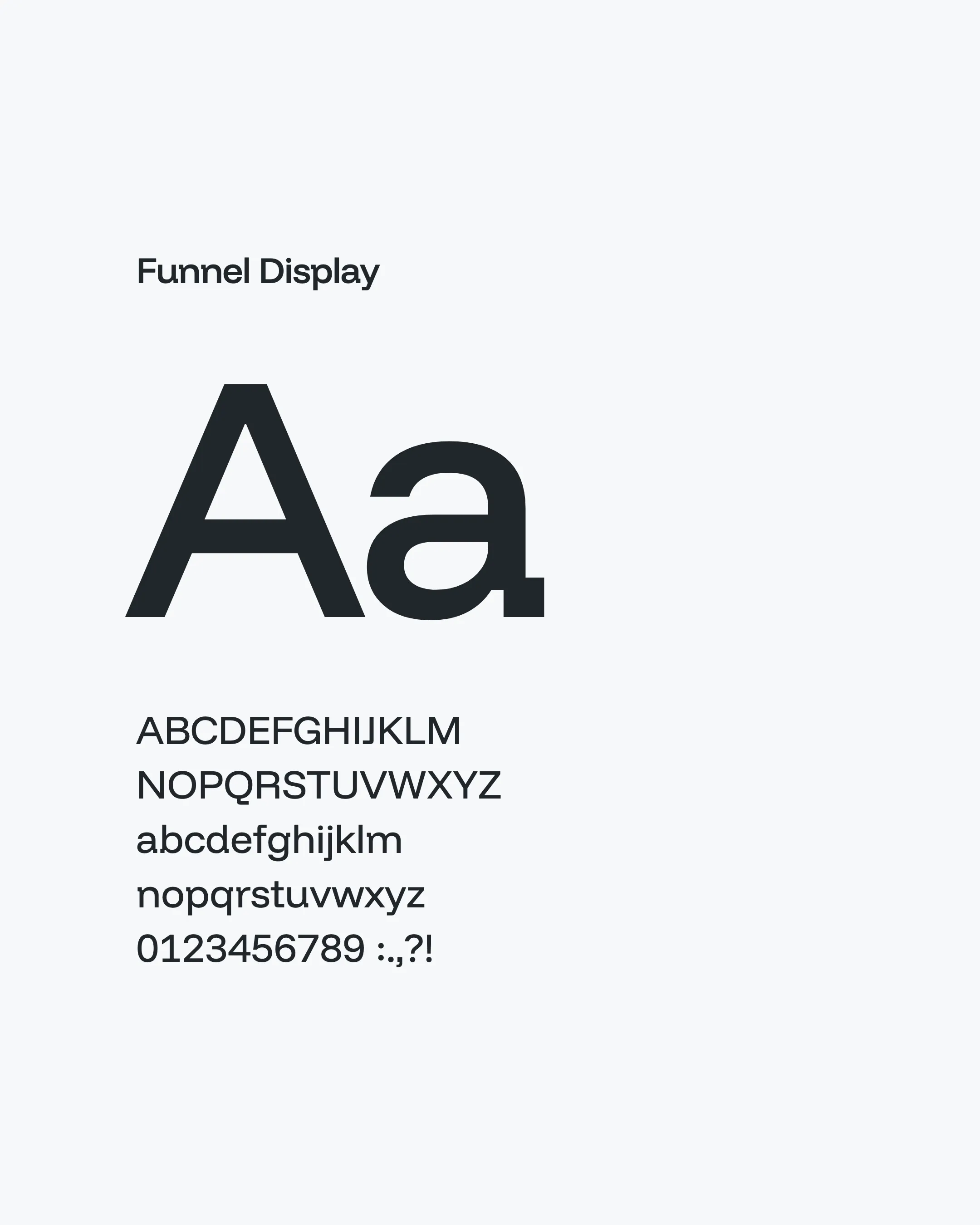
Loggie is a tool you look at many times a day, so the profile is calm and precise: near-white paper, graphite text and one accent colour, lavender. Funnel Display is used for the wordmark and the large numbers, and Geist for everything else.
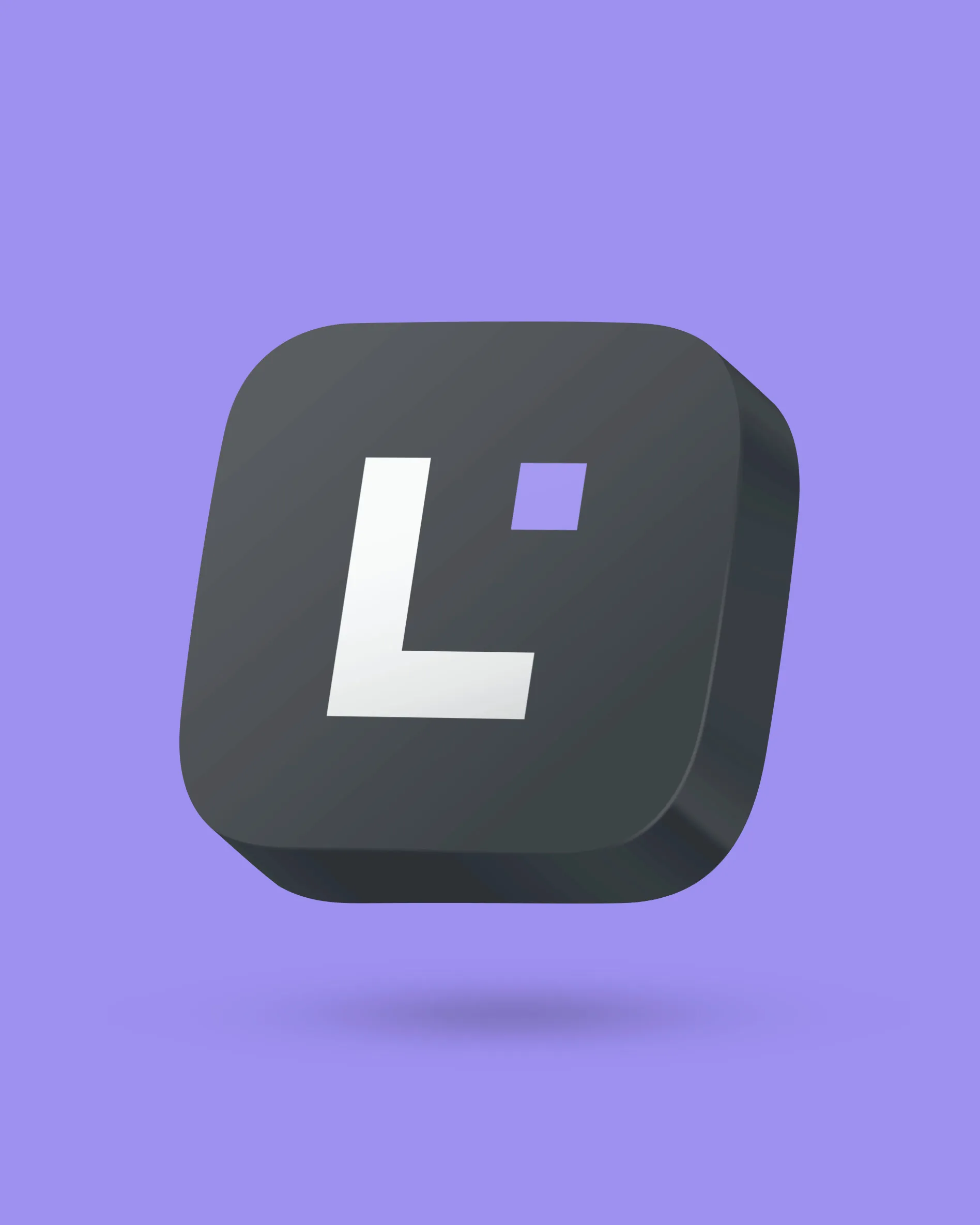
The logo is a clock. The L is the hour and minute hands, and the lavender square is the second hand, which ticks in the menu bar while a task is running. The app icon sits on a graphite tile, so it stays visible in light lists such as the Accessibility settings, where it is only about 20 pixels wide.
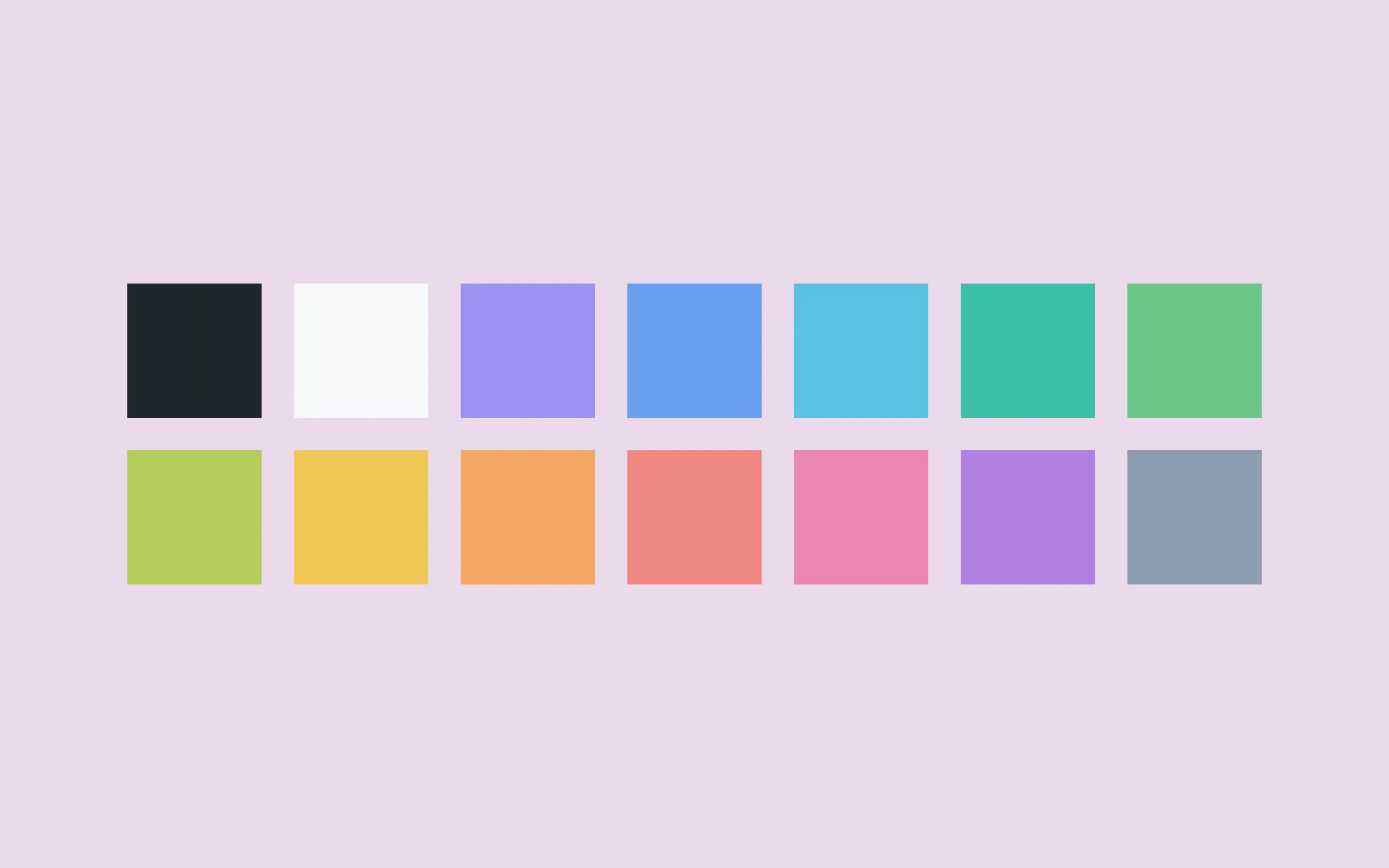
The project colours have to be easy to tell apart in a stacked bar chart, in both light and dark mode. There are twelve, and you can pick your own colour for each project.
The solution
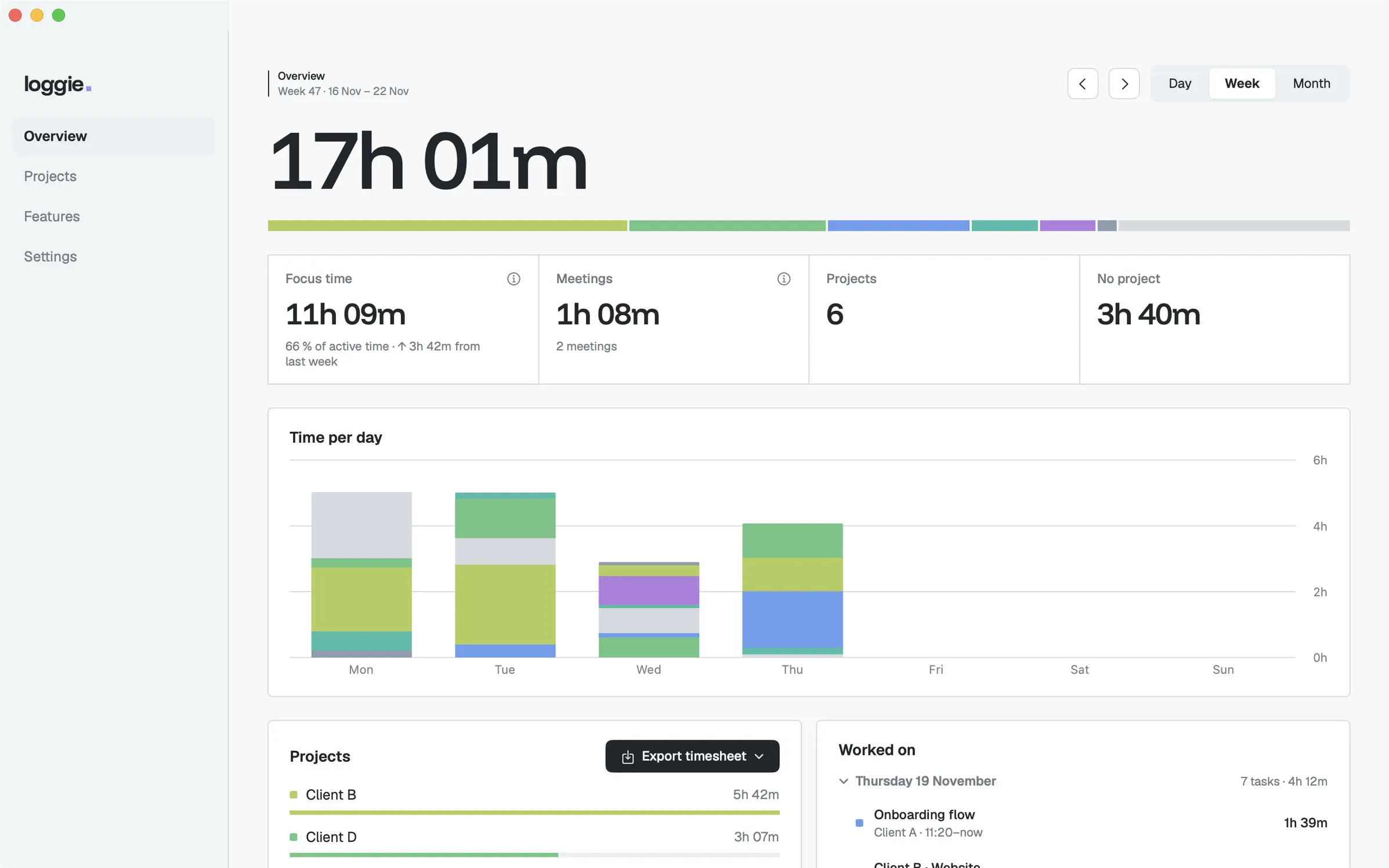
The menu shows what you’re working on and today’s projects. The window has an overview with active time, focus time and time per day, a page for projects, colours and timesheet exports, and the feature switches. Everything works in light and dark mode, and in Norwegian, English, Spanish and French.
Outcome
Loggie is out now, and I use it every day to keep track of my own projects. Through MCP, Claude can read the same data and answer questions like “what did I work on last week?”. It has even been logging the sessions in which Claude helped build Loggie.
Try Loggie
You can download Loggie for Mac at loggie.app.